
+Free Google Sheets Habit Tracker (printable & mobile-friendly)
Whether you’re switching from an app or just want something simple, this mobile habit tracker in Google Sheets can work right from your phone — no setup, no coding. Includes: layout tips, access shortcuts, hybrid tracking options, and one-click tools.
By GoToBetter | Designed for clarity, not complexity
Why Google Sheets Still Works on Mobile (If You Set It Up Right)
Let’s be honest — most spreadsheets aren’t designed for mobile use by default.
They can feel a bit tight on smaller screens. Tiny fonts, lots of columns, tricky taps. But with a few small tweaks, Google Sheets becomes surprisingly smooth to use on your phone.
But Google Sheets can still be one of the simplest, calmest ways to track your habits on your phone — **if you set it up to match how real people actually use their phones**.
You don’t need a new app. You don’t need a full dashboard. You just need a habit tracker you can open in three seconds, check one box, and close it again. Done.
And if you’re the kind of person who likes pen and paper too? There’s a way to combine both — without the overwhelm.
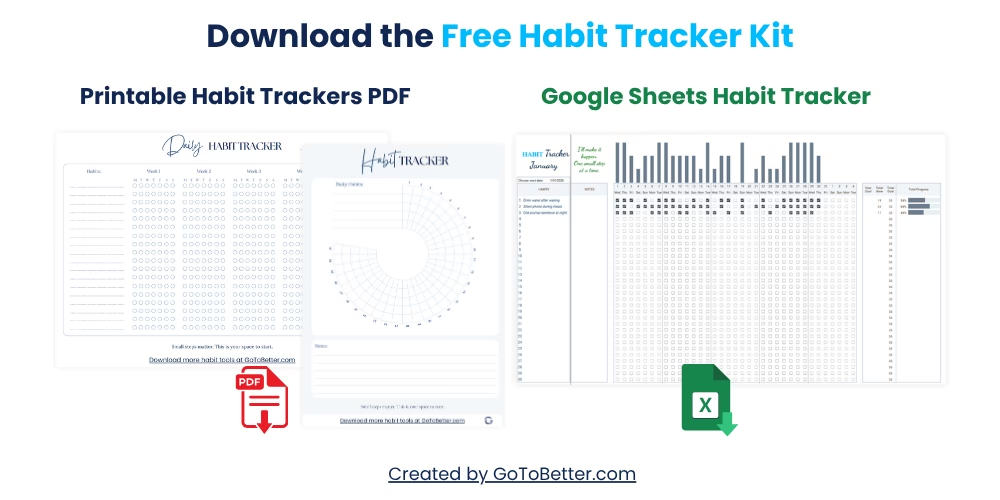
Before you go further, grab your free Google Sheets Habit Tracker Kit — designed to work beautifully on your phone or print it out for your fridge.
Here’s what’s inside:
- A ready-to-use mobile-friendly Google Sheets Habit Tracker (track up to 30 habits with one tap)
- A minimalist printable habit tracker grid
- A 30-day circle habit tracker (digital or paper)
No accounts, no setup — just copy, print, and go.
Write your email and get your Free Kit here↓
Why Google Sheets Still Works on Mobile (If You Set It Up Right)
Most people assume spreadsheets don’t belong on phones. Too clunky. Too small. Too slow. But that’s only true if you leave them in desktop mode.
With the right setup, Google Sheets becomes a surprisingly smooth mobile habit tracker — especially if your goal is to keep things low-tech, simple, and easy to open with one tap.
Think about it: Sheets is already synced across devices. It’s free. You can customize every part of it. And with smart formatting, dropdowns, and minimal typing, it becomes lighter and faster than most apps bloated with features you’ll never use.
Some mornings, I just tap my phone icon, check off “Stretch,” close it. Two seconds. Done. If it takes longer than that, the problem isn’t Sheets — it’s the layout.
GoToBetter says it like this: “The best mobile tracker is one you can open with one thumb and no thinking.”
That’s the trick. Mobile-friendly Google Sheets aren’t about tech — they’re about removing friction. Fewer scrolls. Bigger touch zones. Simple visual feedback. If your sheet feels heavy, you’re not doing anything wrong — you just need to reformat it for the reality of your phone screen.
GoToBetter InsightStart by zooming out your default view. Then resize columns and freeze key rows. Most mobile sheet problems come from scroll clutter, not functionality.
Common myths make this harder than it is. No, you don’t need a separate sheets habit tracker app. No, Google Sheets doesn’t “lose formatting” on mobile — it just needs smart use of headers, font size, and freeze panes. And no, you don’t need to scroll endlessly to log one thing. A dropdown or checkbox in a clean column solves that fast.
It’s less about optimizing and more about respecting reality: fingers are clumsy. Eyes are tired. The habit tracker should help, not punish.
How to Add Your Habit Sheet to Your Phone’s Home Screen
If your spreadsheet habit tracker on your phone takes more than three taps to open, it’s already too far away. The goal is one-tap access — just like an app.
Here’s how to do it — no coding, no installs, no fuss. These steps work whether you’re using Android or iPhone:
How to Add a Google Sheets Habit Tracker to Your Home Screen
This step-by-step method helps you pin your sheet like an app icon — so it’s always one tap away.
Step 1 – Open the Sheet
Start by opening your habit tracker in Google Chrome (Android) or Safari (iPhone). Make sure it’s the correct version — not view-only, not the folder — the actual spreadsheet file.
Step 2 – Use the Share or Menu Icon
On Android, tap the three-dot menu (⋮) and choose “Add to Home screen.” On iPhone, tap the share icon (the square with an arrow) and scroll to “Add to Home Screen.”
Step 3 – Rename It
Give it a short, clear name like “Daily Habits” or “Track Me.” This will be the label on your home screen.
Step 4 – Move It to the Front
Once added, drag the icon to a visible spot. First screen, bottom corner — somewhere your thumb goes often. Don’t bury it in a folder.
Once pinned, it opens like an app — fullscreen, no browser bars, ready to use. And yes, it remembers your last location inside the sheet. That means if you were mid-week or mid-checklist, it opens right there.
For bonus smoothness, always keep the tab open in your browser too. That way, if you swipe your app switcher, it’s already there — one flick, zero friction.
Mobile Layout Tips: Format Your Sheet for Tapping and Viewing
Most people set up their tracker on desktop — but never adapt it for mobile. That’s the bottleneck. The real work happens here: formatting your Google Sheets habit tracker on phone so it’s easy to use when you’re half-asleep, holding coffee, or lying in bed.
You want minimal zooming, clear labels, and large tap zones. Think less “spreadsheet,” more “checklist.”
GoToBetter says it like this: “If your spreadsheet takes more than 5 seconds to load, you won’t use it.”
Here are the small layout shifts that make a huge difference:
| Habit | Track It? | Why |
|---|---|---|
| Stretch | ✔ Dropdown | One tap instead of typing. Works even half-awake. |
| Hydration | ✔ Checkbox | Quick yes/no for daily baseline tracking. |
| Digital detox | ✘ Skip | Better tracked on paper. Too abstract for one tap. |
Use column width tweaks so everything fits the screen. Color-code the columns, freeze headers, and if needed, make a special mobile-view tab. One screen = one day.
GoToBetter InsightUse dropdown menus for multi-option habits and checkboxes for simple yes/no ones. This keeps mobile taps under 1 second and avoids accidental edits.
Some days I open the sheet during my commute. Glance. Tap. Done. That only works because I adjusted font sizes and set zoom to 90% by default — so it fits my whole day on screen, no pinch-zooming required.
How to Use a Printed Tracker Alongside Your Mobile Sheet
Here’s something most tech guides miss: you don’t have to pick between digital and paper. Some habits track better on paper. Some are easier to log digitally. The sweet spot is when they work together — especially when your energy, focus, or routine changes day to day.
Many people use their daily habit tracker in Sheets at night. It’s quiet, reflective, clean. But mornings? That’s where a printed tracker shines. Less screen. More flow. You can glance at your intentions without unlocking anything.
For example, I use a circle-style paper tracker in the kitchen. While making tea, I see it. Later, I mark it in Sheets on my phone. No pressure. No double work. It’s not about copying data — it’s about supporting behavior in the real world.
This also solves a sneaky problem: tech friction. Phones don’t always open fast. Wi-Fi cuts out. Sheets lags. If your system depends 100% on digital speed, it breaks on your slowest day. But a printed backup holds you steady.
And yes, the Free Habit Tracker Kit includes both digital and printable versions — so you don’t have to create your own from scratch.
Hybrid tracking means flexibility. Write by hand when you want calm. Tap the phone when you want convenience. It’s not duplication — it’s two doors to the same habit.
Quick Tricks to Make Mobile Tracking Frictionless
Once your tracker is on your phone and formatted cleanly, the last step is reducing micro-friction. That invisible resistance that makes you go “eh, later” — and never return.
Here’s what makes simple Google habit spreadsheets actually usable day after day:
- Keep the tab open. Don’t close it. Swiping back to it is faster than reopening.
- Pin the tracker to your first home screen. Not in a folder. Not on screen three. Front and center.
- Use colored headers. They guide the eye. Especially helpful when sleepy or multitasking.
- Minimize typing. Use dropdowns, checkboxes, or pre-filled options. Every keyboard tap is a chance to give up.
- Use freeze rows smartly. Keep the habit name visible no matter how far you scroll.
These aren’t tips — they’re survival settings. Your mobile habit tracker should work even on your worst day. Even with low Wi-Fi. Even while holding a sandwich. That’s not perfectionism — that’s design that respects reality.
Some nights I lie in bed, open the tracker, and just tap one box. It feels like proof I showed up. That little click? It’s momentum. Without any drama.
Most people fail not because their tracker is bad — but because it’s too far away, too annoying, or too demanding. This fixes that.
Final Thoughts: If It’s Not Easy, You Won’t Use It
This isn’t about “optimizing your system.” It’s about making your tracker show up for you — instead of the other way around.
Google Sheets is a good mobile habit tracker if you set it up like a habit, not a project. That means simplicity. That means instant access. That means forgiving layout. And sometimes, a backup plan on paper.
If you find yourself tweaking the colors more than tapping the checkboxes, pause. Go back to the goal. The point isn’t to have a beautiful sheet — it’s to make your habits visible and doable in your real life.
And if you need a head start? Use our free one. It’s already formatted for phones, already tested on real people’s real screens, and it includes both the digital sheet and the printable companion.
Because what matters is the moment you tap. The moment you remember. The moment you say: I did it — even if it was tiny.
That’s how tracking becomes part of your life. Not a dashboard. A mirror.
GoToBetter Mini Tool: Tap-Test Your Tracker
Check if your Google Sheets habit tracker is truly mobile-friendly. Open your phone, load the tracker, and do this quick usability test:
- Can you see today’s habits without scrolling?
- Tap one habit — did it respond instantly (dropdown, checkbox)?
- Try adding a habit: did you need to zoom or move columns?
- Count your taps: can you check in within 5 seconds or less?
- If anything took effort — write down which part felt slow or messy.
Now take 2 minutes to adjust column size, zoom, or freeze rows. Your future self will thank you.
Want to Keep Going? Here’s What Helps
This support article is part of the full system for making your Google Sheets tracker easy, fast, and actually usable on your phone — without apps or clutter.
To see the full approach to habit tracking in Google Sheets, go here:
Read The Ultimate Guide to Google Sheets Habit Trackers — your no-fluff guide to layout, templates, visual bars, and tracking without burnout.
Or if you’re ready to get started right now, download the free Google Sheets Habit Tracker Kit:
- Pre-built Sheets tracker (just copy to your Drive)
- Printable circle + grid trackers included
- No login, no apps — just calm, clear habit tools
Want to make your habits one-tap simple? Grab the kit and keep it visible. It’s not about doing more — just making it easier to keep going.
Get the Free Google Sheets Habit Tracker Kit:
Mobile Habit Tracking in Google Sheets FAQ
Can I really use Google Sheets on my phone for habit tracking?
Yes — if the layout is optimized. A habit tracker in Sheets can work smoothly on mobile if you format it with dropdowns, checkboxes, and large tap targets. Avoid scrolling and minimize typing to make it usable daily.
How do I make my sheet fit the screen without zooming?
Adjust the default zoom (try 90%), shrink column widths, and freeze headers. Limit each tab to 7–10 habits per screen to avoid side scrolling. Color-coded rows and bold fonts also help guide the eye.
Should I use both digital and printed trackers?
Yes — especially if your routines vary. Many people use printed trackers in the morning (low screen time) and log them in Sheets later. The combo works better than forcing everything into one format.
How do I open my Google Sheets tracker faster?
Add it to your phone’s home screen using Safari or Chrome. It will act like an app — one tap and done. Also, keep the tab open in your browser so it’s always just a swipe away.
Do I need a special app or add-on to make this work?
No. Everything in this article works using only Google Sheets and your mobile browser or app. No third-party integrations or automation are required. Simple setups work best for long-term consistency.
Ready to Go Deeper?
When daily check-ins start to feel grounding — not exhausting — it might be time to build something more complete.
That’s where the Ultimate Habit Tracker comes in.
Designed for real-life rhythms (and real-life chaos), it lets you:
- Track multiple habits with clarity
- Reflect without overthinking
- See patterns across sleep, mood, energy, and effort
- Adjust your routines without starting over
You don’t need a perfect system. You just need one clear view — and space to grow inside it.
Or explore all trackers on our shop — built for real life, not perfection. From quick daily check-ins to full reflection systems, there’s something to fit your flow: