
+Free Google Sheets Habit Tracker Kit (printable & digital)
Automate habit tracker in Google Sheets—whether you’re tired of endless clicks, want a smarter system, or just need practical automation that works in real life. Includes: 5 no-code tricks, ready-to-use formulas, expert tips, and a free starter kit.
By GoToBetter | Built for real habits, not spreadsheet hobbyists
Why Automate Your Habit Tracker in Google Sheets?
Let’s be honest: most people who start tracking habits in Google Sheets get bored of all the clicking. Even the simplest tracker can turn into a daily “checkbox chore.” That’s not the point.
The real reason to automate a habit tracker in Google Sheets isn’t to feel clever—it’s to make the system run itself. Less clicking. Less forgetting. Fewer places to break things. You want your sheet to do the heavy lifting, not you.
This guide shows you exactly how to add simple, no-code automation to any Google Sheets habit tracker. You’ll learn 5 proven ways to use built-in formulas and formatting that actually make a difference: from auto-updating streak counters to visual progress bars and smart highlights. All without scripts, apps, or complicated setups.
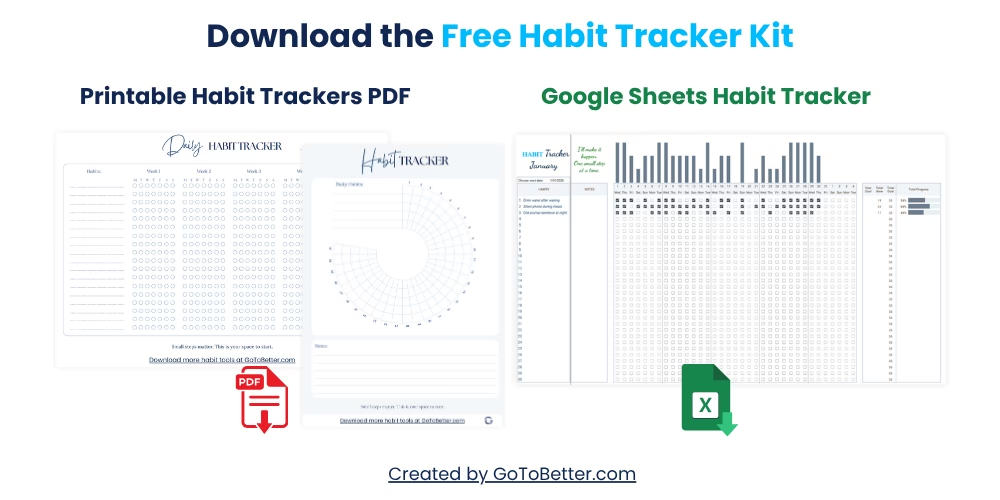
Before you dive in, grab your free starter kit. The Free Google Sheets Habit Tracker Kit gives you:
- Google Sheets habit tracker — track up to 30 habits with one-click updates and visual bars. Works on desktop or phone. No setup needed.
- Printable daily grid — for paper lovers, journaling, or fridge use. Minimal and clean.
- Printable 30-day circle — a visual way to see your consistency at a glance. Great for short habit sprints or motivation boosts.
If you’re looking for a habit tracker that’s not just functional but actually looks good—this is it. The Free Google Sheets Habit Tracker Kit is clean, visually organized, and ready to use as the baseline for any automation you want to try.
Think of it as your personal “testing ground”—a simple, well-designed sheet where you can experiment with every automation covered in this article, risk-free. You don’t need to design anything from scratch. Just open the file, follow the steps, and see each improvement in real time. Every formula, color rule, and tracking trick can be tested directly in this template—so you can make your tracker smarter, faster, and genuinely satisfying to use.
Most templates out there either look messy or try to impress you with complexity. This one is stripped down to what actually matters: easy daily use, clear progress, and a layout you’re not embarrassed to keep open on your phone or laptop.
Whether you’re a spreadsheet person or a pen-and-paper thinker, this free starter kit gives you both options. Perfect if you’re starting small—or starting over.
Write your email and get your Free Kit here↓
What “No-Code” Automation Actually Means in Google Sheets
It’s easy to get lost in guides that promise “automation” for your Google Sheets habit tracker—only to find yourself knee-deep in code, scripts, or even integrations with outside tools. That’s not what you’ll find here.
No-code automation in Google Sheets means using only the built-in formulas and formatting features—nothing more. If you can copy-paste and follow a recipe, you can do everything in this guide. No Apps Script. No external plugins. No technical headaches.
- Code-free: Just use formulas and conditional formatting rules—no programming or script editors needed.
- Anyone can do it: If you’ve ever used =SUM() or highlighted cells, you’re already qualified.
- Instant feedback: You see results as you edit, and everything can be undone if needed—no fear of breaking anything permanently.
Most “automation” tutorials jump straight to Apps Script or Zapier. Here, you’ll only see solutions that work for regular users, not spreadsheet hobbyists.
GoToBetter says it like this: “Automation isn’t about making your sheet look smart—it’s about making your life easier.”
Top Automations People Actually Want in a Google Sheets Habit Tracker
Forget generic advice. Here’s the honest truth: the best automations are the ones you actually use. Each of the ten sections below gives you a problem real users have, the “why,” a step-by-step How To, a copy-paste formula, and a GoToBetter insight. Everything here can be tested right now in your free GoToBetter Google Sheets Habit Tracker Kit.
1. Automatic Streak Counter
Nothing kills motivation faster than losing track of your streak — or having to manually count every day. For most people, a habit streak is the single most visible proof that “something is working.” That’s why the question comes up all the time: How do I automatically track how many days in a row I’ve done a habit in Google Sheets?
Here’s the problem: Most templates make you tally up days manually or reset the counter every week. It’s tedious, breaks flow, and—let’s be honest—most of us just forget. People want a formula that runs in the background and always shows the current streak, no matter what.
When this is set up, you never have to touch it again. Just mark today’s cell with your usual “✔” (or checkbox), and your streak counter updates like magic. Miss a day? It resets. Get back on track? The counter starts over. This is the foundation of a self-running tracker. It’s not about perfection, it’s about visible momentum—right in your sheet.
How to Set Up an Automatic Streak Counter
This is the single most requested automation. Here’s how to build it from scratch in under five minutes:
Step 1 – Add a “Streak” Column
Insert a new column to the right of your habit’s checkboxes (or “done” cells). Label it “Streak.”
Step 2 – Copy-Paste the Formula
In the first row of your streak column (next to your first tracked day), paste this formula:
=IF(B2="✔", IF(A1="", 1, A1+1), 0)
If you use checkboxes, change “✔” to TRUE. Drag the formula down for each new day.
Step 3 – Track Your Habit as Usual
Each day you check off or enter “✔”, your streak count increases. Miss a day and it resets to zero. The latest cell always shows your current streak.
Step 4 – Highlight Your Streak
Apply conditional formatting to the streak column so any number above your “personal best” is highlighted—making your achievement stand out.
Why this saves time: No manual tracking, no tallying. Your streak is always up to date, no matter how messy life gets.
GoToBetter says it like this: “If you want to see real change, watch your streak—not your total.”
You might notice, after a week, that seeing your streak jump from 3 to 4 makes you want to keep going. That tiny dopamine hit is the real reward. It’s not about never failing—it’s about always seeing your progress, one day at a time.
GoToBetter InsightTrack habits for streaks, not just for data. The streak counter turns boring routines into a personal challenge—without any extra clicks.
Reflection: What’s the longest streak you’ve ever kept up—even by accident? How did it feel to see the number climb?
2. Visual Progress Bars
Checkboxes and numbers are nice, but most people want something they can *see* grow. Enter the progress bar: a colored fill that expands as you complete more days, giving you instant visual proof that your effort is adding up.
People are searching: “How can I see my progress for each habit, not just a sea of checkmarks?” They want a bar that updates every day and requires zero formatting or recalculating—just a formula, and it runs on autopilot.
How to Create a Visual Progress Bar in Google Sheets
Get a quick, colorful look at your progress with this built-in trick:
Step 1 – Add a “% Complete” Column
To the right of your habit row, add a column labeled “% Complete.”
Step 2 – Paste This Formula
If your habit cells are B2:AE2 for a 30-day month, enter:
=COUNTIF(B2:AE2,"✔")/30
Format this cell as a percentage.
Step 3 – Apply a Progress Bar
Select the cell(s) with your percentage. Go to Format > Conditional formatting. Choose “Color scale,” then pick a fill that goes from gray (0%) to green (100%).
Step 4 – Watch the Bar Fill In
As you mark habits, the bar fills up automatically. No updates needed. It’s your visual scoreboard.
Why this saves time: One glance shows you how far you’ve come. No more counting or guessing—progress is right there, day by day.
GoToBetter says it like this: “Progress you can see is progress you’ll keep.”
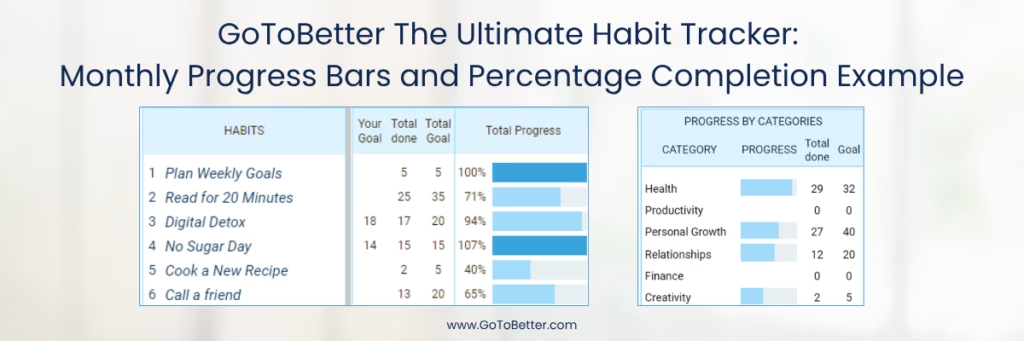
It’s a bit like watching the gas gauge on your car. You don’t need to calculate what’s left; the visual does it for you.
Reflection: When was the last time you felt proud just seeing a visual streak or progress fill up? Why does it matter to you?
GoToBetter InsightBuild your tracker to show—not just store—progress. Visual bars are reminders that every single day adds up, even when it doesn’t feel like much.
3. Conditional Formatting (Highlights & Warnings)
Tracking habits isn’t just about counting wins—it’s about spotting when things slip. The biggest pain? Missing a day and realizing too late. Users constantly ask: “How do I make my tracker automatically highlight missed days or warn me if I’m falling behind?”
What you really want is a system that turns missed days red, keeps streaks green, and gently warns you with a yellow when you’re one day from a streak break. No more scanning dozens of cells—your tracker does the flagging for you. This isn’t just cosmetic: instant feedback is what keeps you honest.
How to Use Conditional Formatting for Instant Habit Feedback
Turn your sheet into a traffic-light dashboard for habits in under 3 minutes:
Step 1 – Select Your Habit Cells
Highlight all cells in your habit row or column (e.g., B2:AE2 for 30 days).
Step 2 – Add a Red Rule for Missed Days
Go to Format > Conditional formatting. Add a rule: Format cells if = Cell is empty — set the fill color to light red. This instantly flags missed days.
Step 3 – Add Green for Completed Days
Add another rule: Format cells if = Text is exactly “✔” — set the fill to green. For checkboxes, use is TRUE.
Step 4 – Add Yellow for Near Miss (Optional)
For advanced users, use a custom formula to flag cells where yesterday was completed but today is empty:
=AND(B2="",A2="✔")
Set this rule’s color to yellow as a gentle nudge.
Why this saves time: You spot lapses instantly—no more hunting for blank cells or trying to remember if you missed a day. You act faster, with less friction.
GoToBetter says it like this: “A red cell is a gentle push, not a shame signal. It’s your next starting point.”
People overestimate willpower. Visual cues are what actually get you back on track—no lecture needed.
Metaphor: It’s like putting a sticky note on your bathroom mirror. You can’t ignore it—even if you want to.
GoToBetter InsightUse color to cue action, not guilt. Conditional formatting turns your tracker into a feedback loop—automatic, honest, and low-stress.
4. Automatic Weekly or Monthly Resets
Manual resetting is the #1 way people break trackers—or stop using them entirely. The common question: “Can my habit counts or streaks reset automatically at the end of each week or month?” No one wants to clear cells by hand or break a working formula just to start fresh.
When you automate resets, your tracker feels “alive”—it knows when the week or month flips, and you never worry about starting over. This is especially helpful for weekly goals, monthly challenges, or when tracking multiple habits on rolling cycles.
How to Auto-Reset Habit Tracking in Google Sheets
Let Sheets do the calendar work so you can just focus on showing up:
Step 1 – Use a Date Header
Above your habit cells, make sure each column header is an actual date (format as Date in Sheets).
Step 2 – Filter to Show Current Week/Month Only
Add a filter to only display columns (days) where the date falls within =TODAY() and =EOMONTH(TODAY(),0) (for monthly), or use =WEEKNUM() for weeks. You don’t delete or clear—just filter what’s visible.
Step 3 – Reset the Streak Counter Automatically
If you want your streak or total to reset with a new week/month, use:
=IF(WEEKNUM(TODAY())=WEEKNUM(A1), previous_count+today_increment, 0)
(Adjust for months with MONTH().)
Step 4 – (Optional) Archive Old Data
Copy-paste as values once a month to a separate tab, so you have a record without cluttering your active view.
Why this saves time: No risk of deleting formulas or losing data. You focus on new habits, not admin work.
GoToBetter says it like this: “Reset automatically—motivation is easier when the sheet gives you a clean slate.”
Think of this as your monthly “refresh”—no need to drag, clear, or panic about breaking your sheet.
Reflection: How many times have you avoided tracking just because it felt too messy to reset? What would change if that friction was gone?
5. Easy Copy-Paste Habit Templates
What if you want to track a new habit without rebuilding your whole sheet? Most users want to know: “Can I just copy a ready-made table or section for a new habit, without breaking the tracker?” Templates must be plug-and-play, not fragile “just don’t touch the formulas” traps.
The trick is making your template robust—so every formula uses relative cell references, and nothing “breaks” when you duplicate rows or columns. This saves hours of debugging, frustration, and starting from scratch every time your goals change.
How to Make a Copy-Paste Habit Template in Google Sheets
Expand your tracker in seconds—no broken links, no panic:
Step 1 – Build One Complete Habit Row
Set up one habit row with all your automations—checkboxes, streak, percent, conditional formatting. Make sure all formulas use “relative” references (A2, B2) instead of “absolute” ones ($A$2).
Step 2 – Select and Copy the Row
Click the row number at the left. Use Ctrl+C (or Cmd+C) to copy.
Step 3 – Insert a New Row, Then Paste
Right-click where you want the new habit. Choose “Insert row.” Paste your copied row (Ctrl+V). All formulas and formatting come with it.
Step 4 – Rename the Habit
Edit the habit name in the first column. That’s it. No need to rewrite formulas.
Why this saves time: You add new habits in seconds. No formula fixing, no lost data—just track and go.
GoToBetter says it like this: “Templates are like seeds—each one grows a new routine, with zero fuss.”
This approach means you don’t outgrow your tracker every time life changes.
GoToBetter InsightUse one row as your “master template.” Copy it for every new habit—no redesign, no rework.
Reflection: How much time could you save if “add a new habit” took 30 seconds, not 30 minutes?
6. Auto-Sum / Category Totals
Anyone who’s ever tracked more than one habit asks, “How do I see at a glance how many times I’ve done a habit this week or month?” No one wants to count checks or scroll through pages. What users want is a live tally—totals that just update as you go. Whether you want a weekly step count, a monthly reading total, or a “scoreboard” for all habits, the solution is auto-sum formulas.
How to Calculate Habit Totals in Google Sheets
Let Google Sheets keep your totals for you—no more manual math or missed milestones.
Step 1 – Select Your Date Range Cells
Decide which days you want to total. Example: For a week, B2:H2. For a month, B2:AF2.
Step 2 – Add a SUM or COUNTA Formula
If you use checkboxes, use
=COUNTIF(B2:H2, TRUE)
for a weekly count. For “✔” marks, use
=COUNTIF(B2:H2, "✔")
Step 3 – Display the Total in a Separate Cell
Put the total at the end of each habit row or at the top of a summary column—wherever is easiest to see.
Step 4 – Add a Category or Overall Total
Sum across habits:
=SUM(J2:J6)
to see the week’s activity for all habits at once.
Why this saves time: Every check-in updates your totals instantly. You spot trends without counting, missing, or double-logging.
GoToBetter says it like this: “Total it once, trust it forever—your tracker’s math is always right.”
This method is ideal for competitive habits (“who exercised most this week?”), or to see patterns (“I always drop off by Thursday—why?”).
Metaphor: It’s like a scoreboard in a game. You always know where you stand, with no extra effort.
7. Dynamic Date Ranges / Rolling Windows
One of the top frustrations: “My tracker only shows a fixed month—how do I always see the last 7 or 30 days, not just the current calendar?” Life isn’t lived in neat months. Users want their tracker to roll forward, so the view is always current—no moving columns, no manual changes.
How to Set a Dynamic Date Range in Google Sheets
Keep your tracker “alive”—always showing today’s context, not last month’s data.
Step 1 – Add a Row of Actual Dates as Column Headers
Use
=TODAY()
to mark the current date; fill right for the next 30 days.
Step 2 – Use FILTER or QUERY Formula
To show the last 7 days, use:
=FILTER(B2:AF2, (B1:AF1>=TODAY()-6)*(B1:AF1<=TODAY()))
(Adjust ranges as needed.)
Step 3 – Display Only the Rolling Window
Show this filtered range in a summary table or duplicate sheet. Now, each time you open the tracker, you only see the most recent days.
Why this saves time: Your sheet stays current, and you always focus on today—not lost in old data or empty columns.
GoToBetter says it like this: “Rolling windows keep your focus forward—what matters is today, not last month’s miss.”
Many people get overwhelmed by empty cells or “missed” days from weeks ago. This method erases the past—literally—so you focus on what’s actionable now.
GoToBetter InsightShow only what’s current. The less you see from the past, the less guilt—and the more you show up.
8. Automatic Goal Tracking (Did I Meet My Target?)
Tracking habits is good—knowing if you hit your weekly or monthly goal is better. A common question: “How do I see if I met my target (e.g., meditate 5 times this week)?” Manual counting and “did I do enough?” is slow, demotivating, and often skipped.
How to Auto-Track Habit Goals in Google Sheets
Make your tracker judge-free but honest. The sheet tells you—no guesswork.
Step 1 – Decide on Your Goal Number
Example: 5 days of exercise per week. Enter this in a “Goal” cell for each habit.
Step 2 – Use a COUNTIF to Tally Habit Completions
For a week,
=COUNTIF(B2:H2, "✔")
or for checkboxes,
=COUNTIF(B2:H2, TRUE)
Step 3 – Create a Success Indicator
In a new cell, use:
=IF(current_count >= goal, "Success", "Try Again")
This instantly tells you if you’ve hit the mark—no manual checking needed.
Why this saves time: You know where you stand before the week even ends. More clarity, less doubt, more action.
Imagine the boost when your tracker turns green the moment you’ve done “enough”—it feels like unlocking a level.
Reflection: How many times have you lost track of whether you’re “on pace”? This removes that worry—forever.
9. Mobile-Friendly Checkbox Input
“How do I make it easy to tap and track habits on my phone?” If tracking isn’t frictionless on mobile, you won’t do it daily. Users crave tap-to-complete columns, clear visuals, and zero fiddling on a small screen.
How to Add Mobile-Friendly Checkboxes in Google Sheets
Make tracking as easy as a single tap—no typing or scrolling needed.
Step 1 – Insert Checkboxes Instead of Text
Select your habit tracking range. Go to Insert > Checkbox. Now you have tap-to-complete cells, perfect for phones and tablets.
Step 2 – Increase Row Height for Easier Taps
Drag the row border down, or Format > Row height (try 40+ px). Makes touch input easier.
Step 3 – Add Conditional Formatting for Visual Feedback
Set checked = green, unchecked = red/blank, so each tap gives instant satisfaction.
Why this saves time: No typing, no hunting—just tap and done. You’re far more likely to track daily.
GoToBetter says it like this: “If it’s not easy on your phone, it’s not a real habit tracker.”
For most users, mobile is where tracking lives—if you can’t do it in 2 seconds, it’s too hard.
10. Habit Completion Percentage
“What % of my habits did I actually complete?” People want a sense of achievement and progress—numbers that are honest and simple to interpret. This metric is hugely motivating because you’re not just checking boxes, you’re seeing a real success rate.
How to Calculate Habit Completion Percentage in Google Sheets
See your progress, not just your effort. Numbers don’t lie—especially when they update live.
Step 1 – Count Total Habit Days
Decide the period (week, month, custom). Example: 30 days = 30 cells.
Step 2 – Count Completed Days
Use
=COUNTIF(B2:AE2, "✔")
or
=COUNTIF(B2:AE2, TRUE)
Step 3 – Calculate Completion Rate
=completed_days / total_days
Format the cell as a percentage (Format > Number > Percent).
Why this saves time: One look tells you how you’re really doing—no guessing, no mental math.
GoToBetter says it like this: “Progress is a number. Motivation is seeing it rise.”
Tracking completion rates is a true “scorecard”—the feedback loop you need for steady growth.
Reflection: If you could only see one stat for your habits, wouldn’t you want to know your true rate of showing up?
Mistakes to Avoid When Automating Your Habit Tracker in Google Sheets
- Don’t try to automate everything at once. Add one feature, test it for a week, then layer more if it actually helps.
- Never overwrite formulas with manual data. Always copy rows and columns with formulas intact.
- Keep a backup version of your tracker—just in case you break something by accident.
- If a formula gets too complex, step back and ask: does this actually save time, or just add clutter?
GoToBetter InsightMost people break their trackers by copying data without formulas, or by layering on too many features before they’re ready. Start simple—let your needs, not your curiosity, drive your next automation.
Airtable vs Google Sheets: Which Is Better for Habit Tracking?
If you search for “Airtable habit tracker,” you’ll find plenty of power users showing off workflows, integrations, and custom dashboards. And sure—Airtable is brilliant for team projects or if you’re building a shared database.
But here’s the reality: for solo habit tracking, especially if you want no-code automation, Google Sheets simply works better. It’s free, accessible everywhere, and designed for fast, frictionless updates—no logins, no learning curve, and no worrying if a new feature will break your habits.
Most people just want a tracker that’s easy to edit, update, and adapt on the fly. Airtable is overkill for 95% of real habit users.
If you ever need a relational database or cross-project views, Airtable’s worth a look. But if you want to automate your habit tracker today—without code, paywalls, or feature bloat—stick to Google Sheets. It’s the sweet spot for anyone who wants to get on with living, not tinkering.
GoToBetter says it like this: “Most habit trackers need simplicity, not a spreadsheet revolution. If you can’t automate it in Sheets, you probably don’t need it.”
Summary Table: Top Habit Tracker Automations in Google Sheets
| Automation | Formula/Tool | Best For | Setup Time |
|---|---|---|---|
| Automatic Streak Counter | =IF, COUNTA | Daily motivation | 2 min |
| Visual Progress Bar | =REPT, Conditional | Visual feedback | 3 min |
| Conditional Formatting | Formatting rule | Highlighting misses | 2 min |
| Weekly/Monthly Resets | =IF, WEEKNUM | Clean cycles | 4 min |
| Copy-Paste Templates | Row duplication | Adding habits | 1 min |
| Auto-Sum Totals | =COUNTIF | Quick reviews | 2 min |
| Dynamic Date Ranges | =FILTER | Rolling view | 4 min |
| Goal Tracking | =IF, Conditional | Weekly targets | 2 min |
| Mobile Checkbox | Insert → Checkbox | Mobile input | 1 min |
| Completion % | =COUNTIF/COUNTA | Benchmarking | 2 min |
Troubleshooting & Best Practices for Google Sheets Habit Tracker Automation
- Always keep a backup of your tracker before adding new automations or formulas.
- Test each automation on a small set of data first; make sure it works before copying across your sheet.
- If something breaks, use Undo or Version History (File → Version History) to roll back.
- Look up Google’s Sheets documentation or Ben Collins’ tutorials for advanced formula help—no need to guess.
- Remember, “automate Google Sheets without code” is about reducing friction, not adding new problems.
GoToBetter says it like this: “No script needed—just a few formulas can change everything.”
GoToBetter Mini Tool: Choose Your Next Automation (1-Minute Reflection)
Before you add new automations, take a minute to choose only what you’ll actually use. Less is more — especially with habit trackers. Reflect and mark your answer:
- Look at the automation recipes above. Which *one* would remove the most daily clicks or “ugh” moments in your tracker? (e.g., auto-streak, highlight misses, visual progress bar)
- Ask: Why do I need it?
(e.g., “I keep losing track of my streak,” “I forget to check off habits on busy days,” “I want a visible nudge to stay on track”) - Now, choose just that single automation to add this week.
Write down which automation you’re choosing, and what pain point it solves for you. - Commit to using only this one for a week. Don’t add more yet — automation should make tracking easier, not more complicated.
This reflection saves you from “automation overload” and keeps your habit tracker useful — not just impressive.
Want to Keep Going? Here’s What Works Next
This article is part of the Google Sheets Habit Tracker support system — practical tools for making habit tracking so easy you’ll actually stick with it.
If you’re ready for a habit tracker that automates itself (and doesn’t get in your way), explore the full method and original templates here:
Read The Ultimate Guide to Google Sheets Habit Tracker — your no-fluff, real-life guide to building habits that last, with zero over-engineering.
Want to skip the setup and just use a proven template? Grab the Free Google Sheets Habit Tracker Kit — everything you need to automate habits, review progress, and get started instantly:
- Google Sheets tracker — track up to 30 habits, auto-updates your streaks and progress bars
- Two printable PDF trackers (minimalist grid & 30-day circle)
- No signup, no app, just copy, print, and start — designed for clarity and real-life use (yes, it works on mobile!)
Ready for a smoother tomorrow? Enter your email below and download your free kit. Small steps, fewer clicks, and no perfection required — just practical tools that fit your day.
Get the Free Google Sheets Habit Tracker Kit:
Automate Habit Tracker Google Sheets FAQ
How do I automate a habit tracker in Google Sheets without any coding?
You can automate a Google Sheets habit tracker by using built-in formulas like =IF(), =COUNTIF(), and conditional formatting rules. These features let you track streaks, color-code results, and auto-calculate totals with just copy-paste steps. No Apps Script or external tools are needed—just set up the right columns and formulas, and your tracker updates itself as you mark habits.
What’s the best way to track habit streaks in Google Sheets?
The simplest way is to add a streak column with the formula =IF(B2="✔", IF(A1="", 1, A1+1), 0). This counts how many days in a row you complete a habit, resetting if you miss a day. It updates instantly when you check off each habit, making it easy to see your momentum at a glance.
Can I set up progress bars or highlights for my habits in Google Sheets?
Yes, you can! For progress bars, use the =REPT() formula to display a visual bar that grows as you complete more days. To highlight missed or completed habits, apply conditional formatting rules to your tracker cells. This makes wins and slips obvious, and keeps your tracking visual without any extra apps.
Why use Google Sheets instead of Airtable for habit tracking?
Google Sheets is free, simple, and perfect for code-free automation using formulas and formatting. Airtable is better for complex, database-style workflows, but most people just want a habit tracker that’s easy to use and accessible on any device. Sheets gives you that—no subscriptions or learning curve.
How can I prevent mistakes or broken formulas in my automated habit tracker?
To avoid errors, always keep a backup of your original tracker before adding new automations. When copying formulas, use “Paste special > Formulas only” to prevent breaking links. Add one automation at a time and test after each step—if something stops working, you can easily roll back and fix it.
Ready to Go Deeper?
When daily check-ins start to feel grounding—not exhausting—it might be time to upgrade to a full, professional system.
That’s where the Ultimate Habit Tracker comes in. Designed for real-life rhythms and real-life chaos, it lets you:
- Track multiple habits with clarity
- Reflect without overthinking
- See patterns across sleep, mood, energy, and effort
- Adjust your routines without starting over
You don’t need a perfect system—just one clear view, and space to grow inside it.
Or, if you prefer a simpler approach, try the Minimalist Habit Tracker — a streamlined version for busy lives.
Want to see all options? Explore all GoToBetter trackers — built for real life, not perfection. From quick daily check-ins to full reflection systems, there’s something to fit your flow.
Want to see everything Google Sheets can do? Here’s the
official list of Google Sheets functions
— straight from Google.