
+Free Google Sheets Habit Tracker Kit (printable & editable)
Google Sheets habit tracker chart is your shortcut to seeing progress at a glance—whether you want motivation, a calm view of your month, or a simple way to visualize your streaks. Includes: easy chart steps, honest examples, and a free printable kit.
By GoToBetter | For real-life habits, not just spreadsheet fans
Why a Google Sheets Habit Tracker Chart Makes Progress Visible
Let’s be honest—most of us don’t want analytics. We want a chart that makes it obvious: Is my habit growing or not? A Google Sheets habit tracker chart is the fastest way to turn your daily actions into a simple, motivating visual—no formulas, no dashboards, no overwhelm.
Here’s what actually helps: seeing your wins stack up, one tiny bar at a time. Even a single checkmark or shaded box can be the difference between “I’m failing” and “Hey, I’m still showing up.” That’s what a habit tracker chart is for—visible progress, in real life.
You don’t need a perfect system. Or fancy analytics. You need to see that you’re moving, even on messy weeks. And if you want to start now, without setup or guesswork, there’s a tool for that.
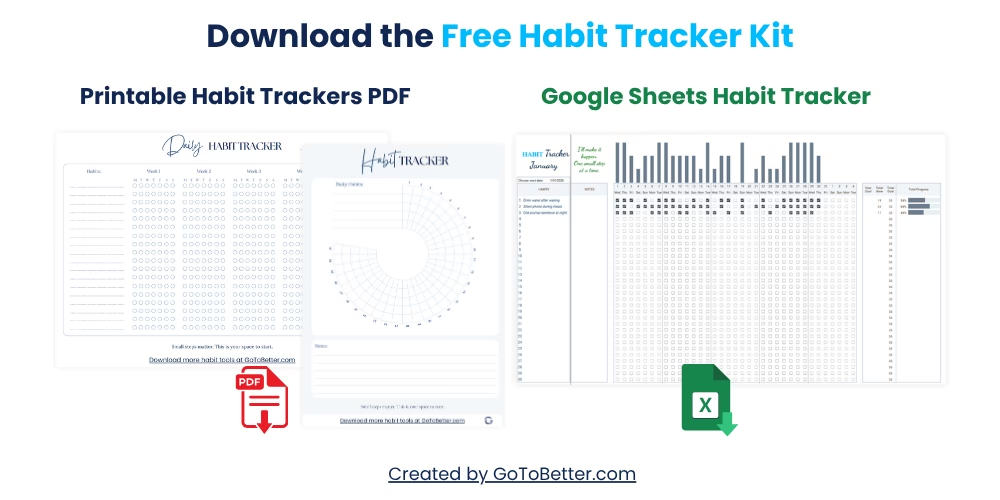
Before you go further, grab your Free Google Sheets Habit Tracker Kit — with bonus printable PDFs.
This kit gives you: a ready-to-use Google Sheets tracker (no setup, just copy and start), plus two printable templates (grid and 30-day circle) for when you want to track on paper. Both digital and printable. All calm, all clear. Designed for anyone starting small—or starting over.
Write your email and get your Free Kit here↓
Why Visualizing Your Habit Progress Matters
Some people say “progress is invisible”—but with a Google Sheets habit tracker chart, you can actually see it stacking up, even if it’s just a single checkmark at a time. That’s not about data. It’s about building momentum—one visible step after another.
When you glance at a progress tracking chart, you’re not just looking at numbers; you’re looking at proof that your habits are growing. This is the emotional payoff: a visual habit chart in Google Sheets gives your effort a shape. Instead of a blur of days, your wins stand out, and the losses fade into the background.
You might notice that, on days when you’re unsure if your effort “counts,” seeing one more colored box on your monthly habit summary gives you the nudge to keep going. Even a week with a gap or two still shows forward movement—something a spreadsheet full of raw numbers can never deliver.
GoToBetter says it like this: “Progress that’s visible is progress that feels possible.”
Habit experts like James Clear (“Atomic Habits”) and Ali Abdaal often mention that visualizing your streaks helps habits stick. In fact, Google’s own documentation recommends bar charts and completion graphs as motivational tools for daily tracking—especially for beginners.
You don’t need to track everything. In fact, the best habit tracker chart in Google Sheets is often the simplest: just enough to see your growth without adding pressure. No dashboards, no analytics, no overwhelm. Just visible proof.
GoToBetter InsightUse a simple bar chart to turn daily checkmarks into a story you can see. Fewer details make each win stand out—too much data just blurs your progress.
This is why so many people give up on complex trackers or dashboards—they create more stress, not more clarity. Instead, one clean progress chart gives you what you really want: visible, honest feedback.
Imagine you’re building a wall. Each brick is a habit done. Some days, you add two or three; other days, just one. But step back and you see the wall growing—not perfectly, but unmistakably. That’s what a Google Sheets habit tracker chart does for your progress.
The Simplest Way to Create a Habit Tracker Chart in Google Sheets
Let’s skip the jargon. You don’t need to learn formulas or build a dashboard. Here’s the simplest way to create a habit tracker chart in Google Sheets—so you can actually see your streaks, not just record them.
Start with a habit tracker template (you can use the Free Google Sheets Habit Tracker Kit linked above, or make your own). Enter your habits in rows and dates in columns. As you track, you’ll fill cells with “1” (done) or leave them blank. That’s your raw data.

To create an easy chart:
- Select the row or column that summarizes your completed days.
- Click “Insert” > “Chart.”
- Choose “Column chart” or “Bar chart.”
- Adjust the chart title to match your habit (e.g., “Walked this month”).
Instantly, your progress transforms into visible bars—no code, no scripts. If you want more details on using charts, check out Google’s official guide to charts in Sheets. But honestly, most people only need the basics you see here. The habit tracker chart Google Sheets generates is clean and motivating, perfect for seeing your monthly habit summary at a glance.
Most people overcomplicate this step, adding conditional formatting, analytics, or multiple series. But you really only need one clear chart. If you’re tracking more than one habit, create a chart for each or show the overall “days completed” per habit.
You might notice that, by keeping your chart simple, it’s far easier to spot patterns: which weeks were strong, where your energy dipped, and how your overall consistency looks over time. A minimalist bar chart for habits can motivate without overwhelming.
GoToBetter says it like this: “A simple chart turns your streaks into something real—not just numbers, but a story you can see.”
If you want to compare options, here’s how different chart types fit common goals:
| Habit Chart Type | Best For | Why |
|---|---|---|
| Bar Chart | Daily/Monthly Progress | Clear, shows streaks and gaps easily |
| Completion % Chart | Motivation, “Am I improving?” | Shows overall success rate, less detail |
| Line Chart | Trends over time | Highlights growth or dips; less visual for wins |
Don’t stress about picking the “best” chart. The right one is the one you’ll actually look at—and feel good about, even on your off days.
Showing Monthly Progress With a Bar Chart (Step by Step)
You want to see your habit progress for the month, not just as a list, but as a living, growing visual. Here’s how to build a monthly habit tracker chart in Google Sheets that’s honest, simple, and stays motivating.
Let’s walk through the steps (and a few mistakes to avoid). You don’t need scripts or formulas—just your regular tracker sheet.
How to Create a Monthly Habit Tracker Bar Chart in Google Sheets
This guide will walk you through creating a monthly bar chart from your habit data—no technical knowledge needed. Just follow each step and watch your progress appear.
Step 1 – Open Your Habit Tracker
Find your Google Sheets habit tracker or copy the free kit. Make sure your habits are listed in rows and days/dates in columns.
Step 2 – Summarize Your Data
Add a summary row at the bottom (or end of your habit) that counts the total “done” days for the month (use =COUNTIF(range,"1") for binary checkboxes).
Step 3 – Select Your Summary Data
Highlight the summary numbers for the habit(s) you want to chart.
Step 4 – Insert the Bar Chart
Go to “Insert” → “Chart.” Google Sheets will suggest a chart—switch to “Column” or “Bar” if it doesn’t pick that by default.
Step 5 – Label and Adjust
Add a clear chart title (e.g., “Walked – March”). Adjust the axis if needed, but don’t over-edit. The simpler, the better.
Step 6 – Use It Daily
As you track habits, watch the bar grow. Each entry adds to your story of progress—no extra clicks or updates needed.
Some mornings, it feels like all you’ve managed is a single checkmark on your Google Sheets habit tracker. Yet, by the end of the month, those marks turn into a bar rising higher than you expected. That’s the magic: your effort becomes visible, no matter how small it seems day to day.
GoToBetter InsightTrack monthly progress with a bar chart for each habit. Don’t combine everything—one chart per goal keeps motivation clear and avoids overwhelm.
You might notice that you sometimes miss a day or two, and that’s normal. The bar chart doesn’t judge—it just reflects what’s real. Over time, these visuals tell you more about your real patterns than any “perfect” streak ever could.
If you’re ever tempted to “upgrade” to a dashboard with a dozen charts, pause. Most people find that one honest bar chart gives them all the progress visualization for habits they’ll ever need.
How to Track Percentage of Days Completed (Visual Progress)
Some people want to see not just how many days they did a habit, but what percentage of the month they managed to show up. Here’s how to use a completion percentage graph in your Google Sheets habit tracker chart—perfect for anyone who likes to see their “score” without pressure.
First, summarize the number of days “done” as before. Then, add a formula to calculate the percentage: =COUNTIF(range,"1")/COUNTA(range). Multiply by 100 for an easy percent.
Select this percentage and create a pie chart or a minimalist bar chart. This isn’t about performance—it’s about making your progress visible at a glance.
You might notice the satisfaction of seeing “60% done” fill most of the circle—even if your month wasn’t perfect. This kind of progress tracking chart is ideal when you’re rebuilding habits or tracking tiny goals.
Let’s say you’re recovering from an injury and want to see how often you managed your rehab exercises. A percentage graph lets you celebrate effort, not just streaks. The same applies to sleep, water, or mood—where “some is better than none.”
A minimalist progress chart isn’t just about the numbers. It’s about building self-trust, seeing the story of your effort, and staying in the game—no matter what last month looked like.
GoToBetter says it like this: “Every box you fill in is proof you’re still showing up.”
One of the biggest myths is that you need a perfect streak to “count.” But most people who build real habits get there by seeing their effort, not just their wins. A visual percentage tracker shows the full picture—progress, not perfection.
Don’t worry about customizing colors or adding fancy filters. What matters is the habit tracker progress graph is honest, visible, and quick to update—so you keep using it.
If you’re curious about more advanced techniques, you can check Google’s help docs or trusted sources like Ben Collins for tips. But for most, a basic chart does the job better than any analytics dashboard ever could.
Keeping Charts Calm and Motivating (Not Overwhelming)
It’s easy to fall into the trap of overtracking—more colors, more tabs, more numbers. But most people give up when their Google Sheets habit tracker chart gets too complicated. What works is calm, clear progress visualization.
You might notice that when you add more details (extra columns, advanced stats), the chart becomes less motivating. It’s just noise. Instead, focus on the single habit or outcome you care about most. This is the real secret behind “easy chart in Google Sheets.”
Here’s the thing: more data doesn’t mean more insight. The chart that helps you show up is the one you’ll actually look at—especially on bad days. That’s why even habit experts recommend a minimalist approach.
For example, I’ve seen people set up “the perfect tracker”—then abandon it within days because it felt like a second job. The one I still use? Three bars. That’s all. Anything more and I stop checking.
Reflection question to ask yourself: Would you still use your habit tracker chart if you couldn’t tweak or upgrade it for a year? If not, it’s too complex.
If you feel tempted by dashboards, remember: what motivates you is seeing growth, not just tracking activity.
Think of your tracker like a window, not a microscope. You want to see the shape of your month, not analyze every single pixel. The best monthly habit summary is one you recognize at a glance—even with half your attention.
And if you ever worry you’re not “doing enough,” take one look at your growing chart. That’s your proof.
- Don’t build complex dashboards you’ll never use—one honest chart beats ten analytics tabs.
- Avoid conditional formatting overload: too many colors = instant overwhelm.
- Skip pivot tables, scripts, or external add-ons unless you *really* need them.
- Don’t track every single metric. One clear visual is enough.
- Avoid perfectionism—your chart is for you, not for a performance review.
The calmer your chart, the more likely you’ll keep using it—even on messy days.
GoToBetter Mini Tool: Your 1-Minute Progress Reality Check
In less than a minute, see how motivating a Google Sheets habit tracker chart can really be—by testing your own setup. Do this before tweaking another detail:
- Open your current habit tracker in Google Sheets (or use a printed tracker if that’s your style).
- Without reading the numbers, glance at your habit chart for just 5 seconds. What’s the very first thing you notice about your progress?
- Write down, in one short sentence, what that chart tells you: Is it “still going”? “Needs a restart”? “Better than I thought”?
- If your chart doesn’t immediately show you something positive—or feels confusing—choose one thing you can remove or simplify (an extra color, an unused column, or a distracting note).
- Repeat tomorrow. The goal: Your chart should make you want to keep tracking—without pressure or self-judgment.
Want to Keep Seeing Your Progress?
A clear chart makes your progress real—and a habit you’ll actually stick with. You’ve learned how to turn your daily tracking into motivation, not just data. Keep it simple, honest, and tailored to what works for you.
This guide is just one part of the bigger picture. If you want to go deeper into building sustainable habits—without overthinking, pressure, or endless dashboards—everything connects back to our main guide:
Read The Ultimate Guide to Google Sheets Habit Tracker — your no-fluff, real-life guide to building habits that last and seeing progress in a way that feels good, not overwhelming.
If you’re ready for a calm, easy start, get your Free Google Sheets Habit Tracker Kit. You’ll get instant access to a one-click digital tracker (pre-built and ready to use on any device) and two printable templates—a minimalist grid and a 30-day circle—to support your habits both on screen and on paper. No setup, no pressure—just tools that fit real life, especially when you’re starting small or starting over.
Drop your email below and grab the full kit:
Google Sheets Habit Tracker Chart FAQ
How do I make a habit tracker chart in Google Sheets?
The fastest way is to track your habits with checkboxes or “1/0” values, then create a bar or column chart using the “Insert > Chart” feature. Select your summary data, insert a bar chart, and label it clearly. Most people don’t need formulas or add-ons—Google Sheets makes it simple with just a few clicks.
Can I visualize my habit progress by month?
Yes—set up your tracker so each column represents a day, and use a monthly summary row. You can then chart your completed days for the whole month. This monthly habit summary lets you see growth at a glance and quickly spot any gaps or patterns in your routine.
What type of chart is best for habit tracking?
For most people, a simple bar chart or column chart works best. These show daily or monthly completion and make it easy to see streaks. If you prefer percentages, a pie chart can show how much of your month you completed a habit. The right chart is the one you’ll check every day without feeling overwhelmed.
Can I use a Google Sheets habit tracker chart on mobile?
Absolutely. Google Sheets is fully mobile-friendly, and charts are visible on your phone or tablet. You can update your tracker, view progress charts, and make changes anywhere, making it easier to stay motivated wherever you are.
Do I need formulas or scripts to track habits in Google Sheets?
No—most people can use built-in checkboxes or simple “1/0” entries. For a basic chart, you don’t need any advanced formulas or scripts. Just count your completed days and let Google Sheets create the visual for you.
Ready to Go Deeper?
When daily check-ins feel motivating (not just another task), it might be time for a habit tracker that grows with you. The Ultimate Habit Tracker in Google Sheets gives you a flexible, customizable way to track multiple habits, see real progress, and reflect at your own pace—all with clean visuals and no clutter.
No more manual updates or complicated dashboards. You get:
- Automated tracking and progress visualization
- Flexible daily, weekly, and monthly views
- Built-in space for self-reflection and growth
- Access from any device, any time—your data stays yours
If you want an even simpler approach, check out the Minimalist Tracker—for when you need clarity, not complexity.
Or, explore all GoToBetter trackers here. Whether you want quick daily check-ins or a complete system for growth, there’s something built for real life—not perfection.