
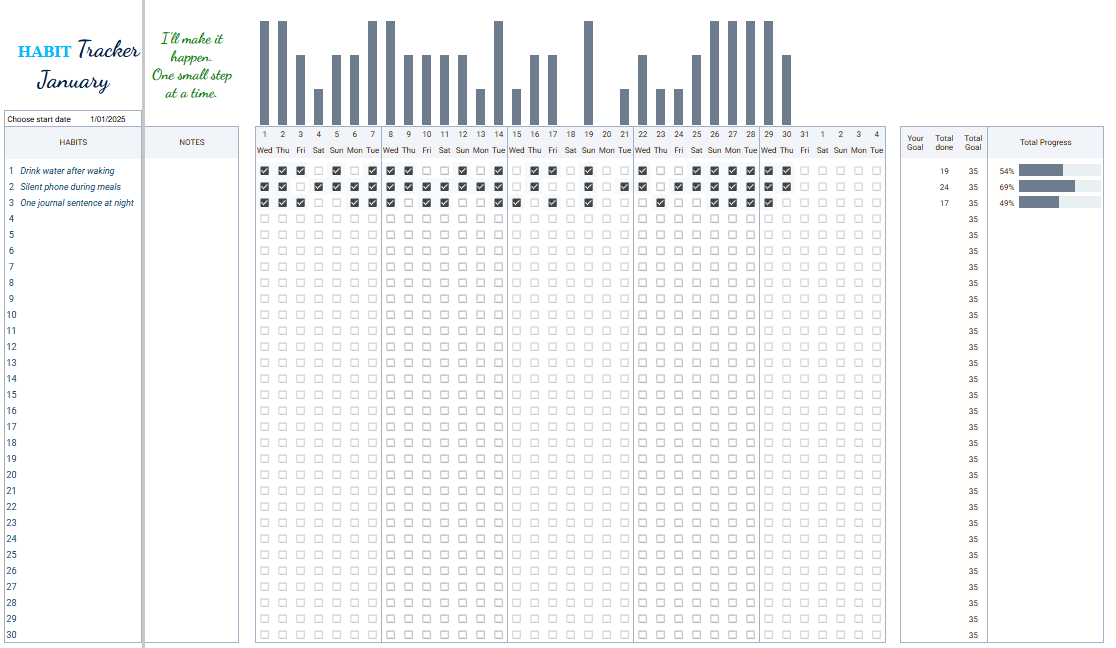
Free editable habit tracker included — you’ll find it in the steps below ↓
Free printable Google Sheets habit tracker — download it, use it on any device, and make it your own. This guide shows how to start, edit, customize, and print it in minutes.
By GoToBetter | Built for people who just want to start
What Is a Google Sheets Habit Tracker?
Short version? It’s a spreadsheet with checkboxes that helps you keep track of habits — no apps, no accounts, no pressure. Just open it, tick a box, and boom: progress.
Behind the scenes, it uses some simple formulas to calculate totals, fill progress bars, and keep things neat. But on the surface? It’s just a clean, editable sheet you can open on your phone, laptop, or print out if you’re old-school like that.
You can change the colors, rename the habits, track once a week or every day. It’s yours. And unlike most apps, it doesn’t try to gamify your life or guilt you into streaks. One tick still counts.
GoToBetter says it like this: “It’s just enough structure to help you — and not enough to stress you out.”
If you’re wondering why we chose Google Sheets instead of building a whole app or pushing a fancy platform — I wrote a whole post about it. Spoiler: it’s not just about simplicity. It’s about control, privacy, and actually sticking with it.
Read why we use Google Sheets for habit tracking →
Looking for a Simple Google Sheets Habit Tracker? Start Here.
If you’re here, you’re probably trying to build better habits — or at least get your act together a little. Totally fair.
And if you’ve already downloaded 3 habit apps, opened them once, then ghosted them? Even more relatable.
This free Google Sheets habit tracker is a clean, no-pressure way to actually start tracking habits. No logins, no weird dashboards. It works on your phone, your laptop, or printed out on your desk. You can check off habits with one tap, see your progress automatically update, and customize the whole thing however you like.
And in this article, I’ll show you exactly how to:
- Copy the tracker and use it in under a minute
- Customize layout, colors, and number of habits
- Make it printable or mobile-friendly
- Protect formulas so nothing breaks
- Add it as an icon on your phone’s home screen
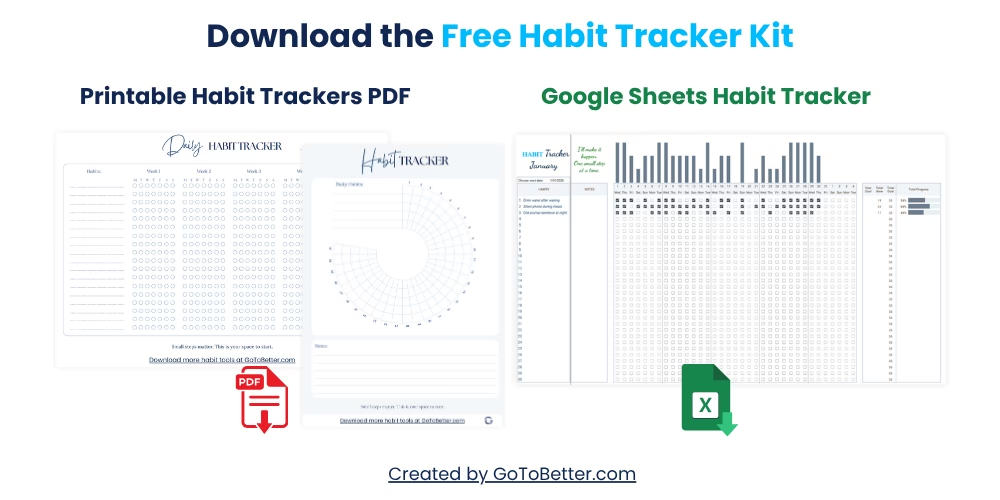
I’ve put it all together in one free kit. You’ll get the editable Google Sheets tracker and two printable PDFs — in case you prefer paper or want both.
Start by downloading the kit here ↓
Download Your Free Google Sheets Habit Tracker
Once you sign up, you’ll get a direct link to copy the tracker. Click that link and you’ll land on a screen that says:
“Would you like to make a copy of GoToBetter Free Habits Tracker?” — with a blue button labeled “Make a copy.”
Click that button. It will instantly save a personal version of the tracker to your Google Drive, and you’ll now have full editing access.
Inside the file, you’ll see three tabs at the bottom:
- Start Here – quick orientation, links to FAQ and contact, and essential setup info
- Intro – a walkthrough on how to use the tracker effectively
- Habit Tracker – your actual tracking sheet with 30 editable habit rows
GoToBetter says it like this: “One clean copy now = zero tech headaches later.”
Important: Before you start editing, we recommend making one more backup:
- Rename your clean file to something like “Habit Tracker – Master Copy”
- Then create a duplicate each time you want to use it (e.g. “Habits – September”)
- This protects your formulas and lets you always start fresh if something breaks
Once you have your working copy, go ahead and open the “Habit Tracker” tab. Let’s walk through what’s inside.
What You’ll See Inside the Google Sheets Habit Tracker
The tracker is already set up and ready to go. Here’s what you’ll find:
- 30 editable habit rows — just type your own habits into the list
- Checkmarks for each day — click or tap to track, no manual counting
- Auto-calculated progress bars — totals update automatically on the right
- One tick = one win. No streaks, no guilt, just quiet progress
This sheet is built for simplicity. If you’re on mobile, it’s fully usable — and you can even add it to your home screen for fast access (we’ll show you how next).
How to Use the Google Sheets Habit Tracker Daily
You don’t need a system. You just need to open the sheet and check a box.
That’s it.
Each row is a habit. Each column is a day. If you do the habit, check the box. The bar at the end updates automatically.
This works on both desktop and mobile — but there are a few tricks to make daily use friction-free:
- On mobile, zoom to just one column + habit row.
- Tap once to check — no menu needed.
- Use color-coded checkboxes (we’ll show you how below).
GoToBetter InsightUse one tap to log — no typing, no dropdowns. The simpler the interface, the more likely you are to return.
You might notice it’s easier to keep going when the sheet is already open in a browser tab. Keep it pinned or bookmarked. Even better? Add it as a mobile app.
How to Add the Google Sheets Habit Tracker to Your Phone Home Screen (Like an App)
Opening your Google Drive every day just to check off a habit? Not ideal. If it takes too long, you’ll avoid it. But if your tracker is right on your home screen — just one tap away — it becomes a part of your routine.
Step 1 – Open Your Editable Copy
Use Safari (iPhone) or Chrome (Android) to open the tracker you just saved to your Google Drive. Make sure you’re looking at the version you plan to use daily.
Step 2 – Open the Browser Menu
On iPhone: Tap the Share icon (the square with an arrow).
On Android: Tap the three-dot menu in the top-right corner of Chrome.
Step 3 – Tap “Add to Home Screen”
Scroll down the menu and select Add to Home Screen. You might be asked to name the shortcut — pick something short and clear like “My Habits”.
Step 4 – Done! Your Tracker Is Now One Tap Away
The icon will appear alongside your other apps. Tap it anytime to open your tracker directly, without logging in or digging through Drive folders.
GoToBetter says it like this: “The fewer clicks, the more likely you are to use it. This one saves you five.”
Next: Let’s customize your tracker so it fits your habits, not someone else’s.
How to Customize Your Tracker in Google Sheets
Want it in purple? Need only 2 habits instead of 30? Prefer big tap-friendly boxes or different labels? You can customize everything in this tracker — without touching a single formula.
The default version is fully functional as-is. But if you want it to feel more personal or fit your style better, here’s exactly how to tweak it safely.
First, always make a working copy — rename it, duplicate it, or archive the original. That’s your insurance if something breaks.
GoToBetter Mini Tool: Customize Without Breaking It
Before changing anything, follow these 3 steps to protect your layout and avoid headaches later:
- Make a backup: Go to File → Make a copy, and name it “Backup Tracker”.
- Freeze important rows/columns: Use View → Freeze to keep headers and habit names visible when scrolling.
- Hide extras: Don’t delete anything yet — just right-click rows/columns you don’t need and choose Hide.
Once your backup is safe, you can start personalizing the tracker. Below are the most common changes people make — and exactly how to do them without messing up the logic.
| Change | Where to Do It | Pro Tip |
|---|---|---|
| Colors | Select cells → Format → Fill color | Choose soft pastel tones for readability |
| Number of Habits | Hide extra rows (right-click number → Hide) or duplicate existing ones | 3–7 is ideal for focus. Less = more doable. |
| Column Width | Drag the edge of the column headers | Wider = easier to tap on mobile |
| Day Labels | Edit directly in the top row | You can change from “M, T, W…” to full days or even dates |
| Habit Names | Edit directly in the first column | Be specific: “Stretch 1 min” > “Exercise” |
| Monthly Use | Make one copy per month and update the title | e.g. “Tracker – Sept 2025” |
You can also bold important rows, add emojis, or tweak the style to make it feel more rewarding. The goal: open the tracker and feel like you made it — not like it was forced on you.
Remember: if you change too much and something breaks, just open your untouched backup and start fresh. That’s why you made it.
Want to learn how to edit formulas, protect tabs, or make your own custom versions from scratch? Check out the advanced guide:
Google Sheets Tips & Tricks for Habit Trackers
Protect Your Formulas and Reset Monthly
Google Sheets does a lot behind the scenes. That’s why it works — but it also means some cells should never be touched.
The tracker you copied includes pre-written formulas in the summary bar. These calculate how many days you completed a habit and visually fill the bar at the end of each row. If you accidentally delete or overwrite these, the visual feedback disappears.
Here’s how to protect them:
- Select the columns with formulas (usually the last column on the right).
- Right-click → Protect Range.
- Set a description like “Don’t touch this” and restrict editing access (if shared).
Once protected, you can reset the tracker each month without losing your formulas.
At the end of the month:
- Clear the checkboxes (select all check cells → Edit → Delete).
- Update the month label if there is one.
- Optional: Duplicate the sheet for historical records (Right-click sheet tab → Duplicate).
GoToBetter says it like this: “Your tracker isn’t fragile. It’s a flexible frame — protect the logic, then play with the look.”
How to Export or Print Your Tracker
Prefer paper? Want to mark with a pen? You can export your tracker to PDF and print it — no tools needed.
Here’s how:
- Go to File → Download → PDF.
- In the PDF settings, choose portrait/landscape and set scaling to “Fit to width.”
- Check the print preview — make sure columns aren’t cut off.
For cleaner printing, hide unused columns or rows first. This keeps the sheet tidy and avoids wasting ink or space.
This also works well for archiving. Some users export a tracker at the end of each month, then start fresh — clean layout, visual record preserved.
GoToBetter Mini Tool: Print-Ready Check
Before exporting your tracker to PDF, do a visual check:
- Do you see only the current month?
- Are all habit names fully visible?
- Is the progress bar showing correct totals?
If anything looks off, cancel and adjust formatting before exporting again.
And remember — inside the free Habit Tracking Kit, you’ll also find two extra printable PDF habit trackers ready to use anytime. Feel free to switch formats whenever it suits you.
Troubleshoot Common Issues
Not sure why something isn’t working? Most Google Sheets problems are minor and easy to fix if you know what to look for.
| Problem | What Likely Happened | Fix |
|---|---|---|
| Can’t edit the file | You’re viewing the original, not your copy | Go to File → Make a copy |
| Checkboxes not working | Cell formatting changed | Right-click → Data validation → Checkbox |
| Bar doesn’t fill | Formula got deleted | Undo or re-copy from backup |
| Too small on phone | Zoom settings not adjusted | Pinch to zoom, or rotate phone |
Still stuck? Make a new copy and start fresh. Most issues vanish with a clean version.
GoToBetter InsightStart with a clean copy anytime something breaks. Simplicity is your safety net.
Use It Your Way — Minimalist vs Detailed Habit Tracker
You don’t need a perfect system to start tracking. In fact, the simplest setup is often the smartest — especially if you’re just getting back on your feet or trying not to overthink it.
One row. One habit. One tick a day. That’s more than enough.
But if you’re starting to notice patterns — or wondering why some habits stick and others don’t — you might be ready for more structure. That doesn’t mean turning your tracker into homework. It just means letting it support you, instead of only reflecting what you didn’t do.
That’s why I built the Ultimate Habit Tracker. It’s what I personally use when I want a clear system that still feels human — something between “tick a box” and “life dashboard.”
Here’s what it gives you (on top of the free version):
- Daily, weekly, and monthly tracking — in one place, no switching tabs
- Automated visuals — instant graphs, summaries, and progress views
- Weekly reviews — quick prompts to reset or adjust habits
- Built-in motivators — gentle trophies that make consistency feel rewarding
- Private and secure — it lives in your own Google account
- Fully customizable — tweak anything, no formulas or coding needed
But there’s one feature that makes it different from almost every other tracker:
You can assign habits to specific days of the week.
That means you’re not stuck pretending something should happen daily. Want to track “Strength training” only on Mondays and Thursdays? “Email cleanup” just on Fridays? “Call Mom” every Sunday? You can set that. And your weekly stats will reflect only the days that matter — no guilt, no distortion.
It’s perfect for people who have rhythms, not routines. Especially if your week is structured, but not symmetrical.
GoToBetter says it like this: “If a habit only happens on Fridays, your tracker should know that. Otherwise, it’s just noise.”
This kind of weekly habit mapping isn’t in the free version — but it’s one of the most loved features in the Ultimate Habit Tracker.
And the best part? You can still use it minimally. One habit. One row. One custom day. It’s just that when you want to zoom out, reflect, or adjust — all the tools are already there.
GoToBetter says it like this: “Start small, but don’t stay stuck in starter mode forever.”
GoToBetter Mini Tool: Is It Time for the Upgrade?
Not sure if it’s time to switch? Ask yourself:
- Do I want to track habits that aren’t daily — and have the data make sense?
- Would it help to review how I’m doing weekly or monthly?
- Am I tired of adjusting formulas or switching between tools?
If yes, the paid version will probably save you time, friction, and a few Google searches.
Download Your Free Google Sheets Habit Tracker Kit (If You Didn’t Yet)
This is the exact tracker we’ve been walking through in this article — and it’s 100% free to download and start using right away.
Here’s what’s inside the kit:
- Google Sheets Habit Tracker — fully editable, beginner-friendly, with checkboxes and progress bars
- Printable Circle Tracker (PDF) — visual habit wheel to track one habit over the month
- Printable Weekly Tracker (PDF) — simple dot-style layout for up to 6 habits across 5 weeks
Everything’s designed for clarity, ease of use, and no tech headaches. You can print it, use it digitally, or mix both — whatever feels easiest to stick with.
Final Reflections: How It Fits Your Life
This isn’t about filling every box. It’s about noticing what’s happening in your life — and gently nudging yourself toward consistency.
Some days you’ll forget. Other days you’ll only open the file. That still builds the habit.
You’re not trying to be perfect. You’re just becoming the kind of person who checks in. That’s what habit tracking is, at its best — a soft mirror that reminds you who you’re choosing to be.
GoToBetter Mini Tool: Habit Visibility Check
Open your tracker and ask yourself: “Which habits do I *actually* want to see first when I open this?” Then:
- Choose your top 2–3 current focus habits.
- Move those rows to the top of your sheet (cut + insert, or drag).
- Hide any rows you’re not using right now (right-click → Hide row).
- Zoom in to just those rows on mobile — one tap, no overwhelm.
Your tracker isn’t a report card. It’s a mirror. Make it reflect what matters today — not everything at once.
Still Deciding? Google Sheets vs Apps?
If you’re still wondering whether Google Sheets is the right way to track habits — totally fair.
Apps can look slick, send reminders, and promise instant insights. But they also come with notifications, login loops, and the quiet pressure to “optimize” everything. Google Sheets, on the other hand, gives you a clean, flexible, no-pressure setup you fully control.
GoToBetter says it like this: “Sometimes the best tool is the one that shuts up and stays out of the way.”
I broke it all down — the real pros and cons of both options — in a full comparison guide. If you want the honest take (no hype, no spreadsheets worship), it’s right here:
→ Google Sheets vs Habit Tracker Apps: Which One’s Actually Better for You?
Google Sheets Habit Tracker FAQ
Is there a free Google Sheets habit tracker I can use?
Yes — you can download the free GoToBetter Habit Tracker Kit. It includes a ready-to-use Google Sheets template with built-in checkboxes, summaries, and a print-ready version. No coding or setup needed.
How does a Google Sheets habit tracker work?
A Google Sheets habit tracker uses checkboxes and formulas to help you log your daily or weekly habits. When you check a box, the sheet automatically updates your progress, often with visual summaries like progress bars or charts.
Can I track weekly habits in Google Sheets?
Yes. You can set up your tracker to count only specific days of the week — like tracking workouts on Mondays and Thursdays, or calls on Sundays. A good tracker won’t penalize you for days the habit doesn’t apply.
How do I add checkboxes in Google Sheets?
Click on a cell (or range), then go to Insert → Checkbox. You can format them with conditional colors or link them to formulas for automatic tracking and summaries.
Can I use a Google Sheets habit tracker on my phone?
Yes. Google Sheets works on mobile devices. Just open the app, sign in to your account, and you can tap checkboxes or edit habits directly. Some formatting features may be limited, but basic tracking works well.
How do I customize a habit tracker template?
Start by making your own copy of the tracker. Then edit habit names, tracking days, or visuals. In well-built templates (like GoToBetter’s), formulas are protected so you can change the layout without breaking anything.